
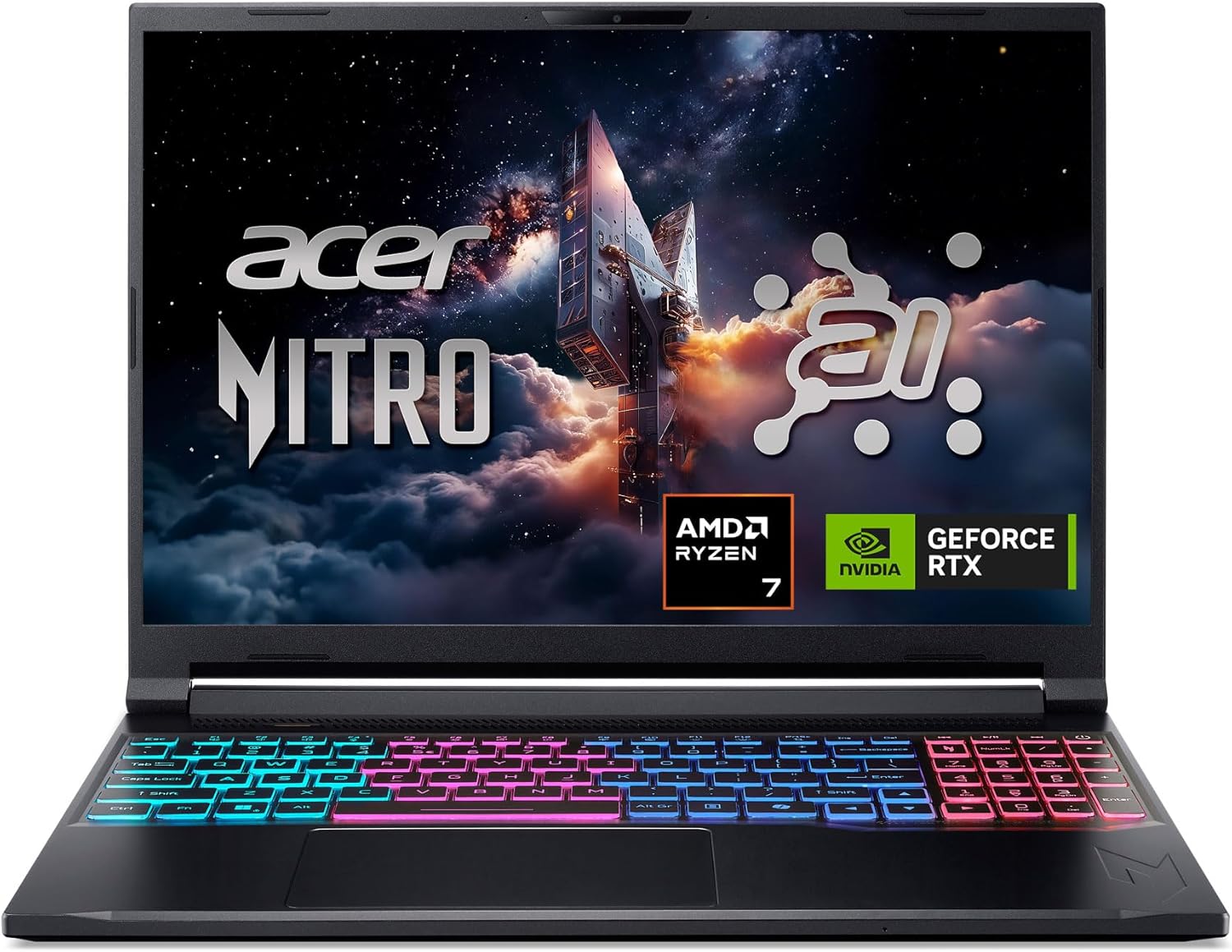
Acer Nitro V 16S
4.4/ 5
180Hz WUXGA IPS display
RTX 5060 laptop GPU
AMD Ryzen 7 260
32GB DDR5 memory
Choosing among high-end gaming laptops means weighing graphics power, screen smoothness, memory, storage, cooling, and portability. Some models favor raw frame rates, while others favor a lighter body or easier upgrades. We compare 10 standout options on those practical factors so you can see which trade-offs fit how you actually play and work.
Price is not the only divider here. A 15.6-inch chassis and an 18-inch chassis suit very different desks and bags, and a 144Hz screen can look noticeably different from a 240Hz panel once a game is moving quickly. The graphics processor usually sets the ceiling for frame rates, while the processor, memory, and cooling determine whether that performance stays steady.
The comparison looks at the advertised specifications for each model, including GPU, display size and refresh rate, processor, memory and storage, and port selection, with weight and thickness noted where a model's details provide them. Retailer star ratings are shown alongside each model. They reflect buyer sentiment rather than lab results, so treat them as a starting signal. Because this guide does not include independent benchmarks, the focus stays on what each advertised figure means in everyday play.
4.4/ 5

4.7/ 5

3.9/ 5
As an Amazon Associate we earn from qualifying purchases, at no additional cost to you.
Swipe across to compare all columns
| Product | Key highlights | Rating | Explore |
|---|---|---|---|

Best for Wi-Fi 7 Connectivity
ASUS ROG G16 RTX 5060
|
165Hz FHD+ display
GeForce RTX 5060 graphics
16GB DDR5 memory
1TB Gen 4 SSD
|
4.4/ 5 | Check Price |

Best for High-Refresh 2.5K Gaming
ASUS ROG G16 RTX 5070 Ti
|
240Hz 2.5K display
GeForce RTX 5070 Ti
32GB DDR5 memory
Core Ultra 9 275HX
|
4.3/ 5 | Check Price |
|
Best for 180Hz Display Gaming
Acer Nitro V 16S
|
180Hz WUXGA IPS display
RTX 5060 laptop GPU
AMD Ryzen 7 260
32GB DDR5 memory
|
4.4/ 5 | Check Price |

Best for Large-Screen Gaming
MSI Crosshair 18 HX
|
240Hz 18-inch QHD+ display
GeForce RTX 5070 8GB
Core Ultra 9 275HX
2TB NVMe SSD
|
5.0/ 5 | Check Price |

Best for Compact High-End Gaming
MSI Katana 15 HX
|
165Hz QHD+ display
GeForce RTX 5070 graphics
Core i9-14900HX processor
4-zone RGB keyboard
|
4.0/ 5 | Check Price |
|
Best for Maximum Graphics Power
ASUS ROG SCAR 18
|
GeForce RTX 5090 graphics
240Hz 2.5K HDR display
2TB Gen 4 SSD
Tool-free upgrade access
|
3.9/ 5 | Check Price |
|
Best overall
ASUS ROG G16 RTX 5080
|
2.5K HDR display
GeForce RTX 5080 graphics
32GB DDR5 memory
1TB PCIe Gen4 SSD
|
4.7/ 5 | Check Price |

Best for Onsite Service Coverage
Alienware 16 Aurora
|
16-inch WQXGA 120Hz display
RTX 5050 laptop GPU
Intel Core 7 240H
Cryo-Chamber airflow design
|
4.1/ 5 | Check Price |

Best for Big-Screen Portability
MSI Cyborg 17
|
17.3-inch FHD 144Hz display
GeForce RTX 5060 graphics
Core 7 240H processor
5.5-pound portable build
|
4.5/ 5 | Check Price |

Premium pick
HP Victus 15.6
|
144Hz Full HD display
GeForce RTX 3050 6GB
Core i5-12450H processor
512GB PCIe SSD storage
|
4.4/ 5 | Check Price |
As an Amazon Associate we earn from qualifying purchases, at no additional cost to you.
This is the most approachable model in the group for someone who wants a current ASUS gaming laptop with a fast 165Hz screen and the newer RTX 5060 graphics chip. It fits players who spend most of their time in popular multiplayer titles and modern single-player games at sensible settings. The 16-inch frame is a practical middle ground if you move the machine between rooms or take it to a friend's place now and then.
Performance rests on two linked choices: the RTX 5060 and the Core i7 14650HX processor. The graphics chip decides how many frames per second you can draw at a given resolution and detail level, so check it first if you plan to play recent releases. The 165Hz refresh rate reduces motion blur and makes fast camera turns look smoother, provided your games can reach that frame rate. Advertised support for DLSS 4 and Max-Q technologies can help where games offer them.
Daily comfort depends on several smaller details. The Wi-Fi 7 adapter pays off only when your router supports the standard, so older networks still work but will not show the full benefit. The FHD+ panel at 16:10 gives more vertical space than a standard 16:9 screen, which helps with web pages and documents. The ROG lightbar and its Stealth Mode are mostly about appearance, though Stealth Mode is handy in shared spaces where you would rather not have lights on. Keep the intake vents clear, since a compact chassis relies on airflow.
Choose this model if you want the ROG design language, a smooth 165Hz screen, and a balanced configuration without stepping into the top GPU tier. If your games are demanding and you plan to keep settings high for several years, a higher GPU in this lineup is the more future-friendly path. Compare it with the RTX 5070 Ti model if you want a higher graphics tier and a sharper 2.5K panel.
Plug the laptop in for demanding games, since gaming laptops generally deliver less performance and shorter battery life when unplugged. Confirm that Windows is set to the panel's 165Hz mode in display settings, because it may default to a lower rate. If fan noise bothers you, cap the frame rate a little below your average, which lowers heat output and often makes the system quieter.
Buyers who want a sharper 2.5K screen or the highest graphics tier in this group should look at the RTX 5070 Ti or RTX 5080 models, since this FHD+ configuration favors balance over maximum visual detail.
As an Amazon Associate we earn from qualifying purchases, at no additional cost to you.
This configuration is for players who care about smooth motion and crisp detail in equal measure. The 2.5K 240Hz screen is a clear step up from the FHD+ panel in the entry model, and the RTX 5070 Ti sits in a higher graphics tier. It suits competitive players who want high frame rates, and it also works for people who run creative software alongside their games.
Resolution and refresh rate both draw on the graphics chip. At 2.5K you need more GPU power to hold a given frame rate than you would at FHD, so the RTX 5070 Ti is the component that makes this screen worthwhile. A 240Hz panel offers very quick motion updates, but the benefit appears only when games consistently produce high frame rates. The Core Ultra 9 275HX and 32GB of DDR5 help when a game runs alongside voice chat, a browser, and recording software.
A few practical points come with this setup. The 1TB SSD leaves less room than the larger-storage models in this guide, and some modern game installs can take tens of gigabytes each. The ACR film is advertised to improve contrast and cut reflections, which helps near windows or under bright lights. Wi-Fi 7 support is included for newer routers. An external SSD is a sensible way to store older games without crowding the internal drive.
This model fits players who want a high-refresh 2.5K display and a strong GPU without moving up to an 18-inch chassis. It makes the most sense if you can keep games close to high frame rates and do not mind managing storage. If you mostly play older or less demanding titles, a lower configuration may give a similar experience with less strain on the battery and cooling.
If a game averages around 90 frames per second, a 240Hz panel will still show smooth motion, but you will not be using its full refresh range. Lowering a few heavy settings, such as shadows and ray tracing, often raises frame rates more than dropping the resolution does. Aim for a stable frame rate first, since uneven frame pacing is more noticeable than a modest drop in peak performance.
Players who want the largest graphics headroom in this guide should consider the RTX 5080 model, which pairs a 2.5K HDR display with a higher GPU tier. Buyers who plan to move the laptop often may also prefer a lighter 15-inch option, because this 16-inch chassis is designed for a desk more than a commute.
As an Amazon Associate we earn from qualifying purchases, at no additional cost to you.
The Nitro V 16S suits players who want a fast 180Hz screen and an RTX 5060 graphics chip on an AMD processor platform. It fits people who play competitive shooters, battle royales, and other fast titles where a high refresh rate helps the image keep pace with quick movement. It is also a reasonable choice for someone who splits time between gaming and everyday work.
The 16-inch WUXGA panel runs at 2026 by 1200 pixels, a taller shape than a standard 1080p display, which gives more vertical room for maps, chat windows, and web pages. The 180Hz refresh rate pairs with the RTX 5060, which is advertised with ray tracing and DLSS 4 support that can lift frame rates in supported games. The title also cites AI performance figures for the processor and graphics chip. Those numbers matter mainly for AI-enabled software, so most gamers should judge the machine by frame rates and responsiveness.
Memory and storage work in your favor and against you. You start with 32GB of DDR5, and the free M.2 slot leaves room for a second SSD later. The advertised maximum of 32GB is the limit, though, so buy the configuration you expect to need for the next few years. Wi-Fi 6 is adequate for most home networks, but it is an older standard than Wi-Fi 7 in this guide.
This model is best for gamers who want a smooth screen, a balanced RTX 5060 system, and room to add storage later. If your priority is maximum graphics headroom or a 2.5K display, the ASUS models in this list offer more room to grow. The trade-off is clear: a fast screen and solid everyday specifications, paired with a firm memory ceiling.
Set the display to 180Hz in Windows display settings, then confirm your games run in full-screen or borderless mode so the refresh rate is actually used. A frame limiter can keep frame pacing even when a scene gets heavy. Competitive players often lower shadows and post-processing first, since those settings cost frames without changing how targets look at a distance.
Buyers who expect to upgrade memory beyond 32GB, or who want a 2.5K panel for detailed creative work, should look elsewhere in this guide. The 32GB ceiling is the main limit on this model.
As an Amazon Associate we earn from qualifying purchases, at no additional cost to you.
The Crosshair 18 HX is a desk-first machine for gamers who want a large, high-refresh screen and a powerful processor in one package. The 18-inch QHD+ panel at 2560 by 1600 and 240Hz gives more on-screen space than most laptops in this guide, which is useful for strategy games, simulators, and editing timelines. The retailer star rating is a perfect 5.0, but a single score does not show how many buyers contributed, so treat it as an encouraging signal rather than proof.
The Core Ultra 9 275HX has 24 cores and is paired with 32GB of DDR5 memory, which handles a game running alongside streaming and voice tools. The RTX 5070 with 8GB of GDDR7 is the graphics heart of the machine. Eight gigabytes of video memory is adequate for many current titles at high settings, but it can become a limit in very demanding games with heavy textures. A 240Hz refresh rate on a QHD+ panel asks a lot of the GPU, so settings choices matter.
Connectivity includes Intel Wi-Fi 6E and Bluetooth 5.3, and the 720p webcam has a privacy shutter. That camera is basic by current standards, so plan on an external webcam if you take many video calls. The 2TB NVMe drive gives plenty of room for large libraries. The model has no optical drive, which only matters if you still use discs. Give the machine a stand or an open surface so the chassis can breathe under load.
This model suits someone who uses the laptop mainly at a desk and wants a large, high-refresh display with generous storage. It is less suited to people who carry a laptop daily or need a compact setup. If portability and a stronger webcam matter more to you, the 15-inch and 17-inch models in this list may fit better.
An 18-inch screen works best at arm's length on a stable desk, so position the laptop where your eyes sit near the top third of the display. Use an external mouse and keyboard to keep the chassis from becoming a hot lap warmer. If you connect an external monitor, set the 240Hz panel as your primary screen only when the game and settings support it.
Anyone who expects to take this laptop to classes, client sites, or long commutes should prefer a 15 to 17-inch model, since the 18-inch body adds bulk. Buyers who call often should also plan for an external webcam from the start.
As an Amazon Associate we earn from qualifying purchases, at no additional cost to you.
The Katana 15 HX is a practical pick for players who want a Core i9 processor and an RTX 5070 in a 15.6-inch chassis. It suits people who play mostly at a desk and want a 165Hz QHD+ screen with more detail than a standard 1080p display. The smaller frame is easier to fit into a backpack or a modest desk than the 18-inch options in this guide.
The Core i9-14900HX is a hybrid-architecture processor with 24 cores, which helps when a game runs alongside streaming, chat, and background tasks. The RTX 5070 is advertised with ray tracing and DLSS 4 upscaling, both of which can raise frame rates in supported games. At 165Hz rather than 240Hz, a balanced frame-rate target is realistic for many players, and you can tune settings to keep performance smooth rather than chase the highest possible number.
Connectivity is well covered. USB-C Gen 2, several USB-A ports, HDMI, an RJ45 Ethernet port, and Wi-Fi 6E give you options for a monitor, a controller, and a wired connection. Wired Ethernet can feel steadier than wireless during online play. The RGB keyboard with highlighted WASD keys is a convenience for players who like to see their controls, although it is an appearance feature rather than a performance one. The advertised Cooler Boost 5 design uses dual fans and a shared heat pipe layout. Keep the vents clear and use the laptop on a hard, flat surface to help airflow.
This model fits buyers who want a capable 15.6-inch gaming laptop with a strong processor, a strong GPU, and wired connectivity. It makes sense if you play a mix of competitive and graphically demanding titles at a desk. If you want a larger screen with a lighter advertised weight, compare it with the Cyborg 17. If visual detail matters more, the 16-inch ASUS models offer a 2.5K panel.
Use a laptop stand or a cooling pad to raise the intake area, and clean the vents periodically with short bursts of compressed air. Setting a balanced power mode for everyday tasks keeps the system quieter, while switching to a higher mode is best reserved for demanding sessions. Capping frame rates near the panel's 165Hz rate can also reduce heat without a visible drop in smoothness.
Buyers who want a 2.5K display or more space for multi-window work should look at the ASUS G16 models or the 18-inch Crosshair. Anyone who needs the quietest possible operation under full load should choose a lower-power configuration, because stronger cooling usually means more fan noise.
As an Amazon Associate we earn from qualifying purchases, at no additional cost to you.
The SCAR 18 is the most graphics-focused machine in this guide. It is designed for players who want the RTX 5090 Laptop GPU, a large 18-inch high-refresh display, and room to upgrade internal parts later. It suits people who value graphics headroom above portability and who have a dedicated desk for a large chassis. Its retailer rating is 3.9, which is the lowest here, so the decision should rest on how you plan to use it.
The RTX 5090 is advertised at 175W TGP, meaning the total graphics power limit the chip can draw. A higher allowed power level generally supports stronger sustained performance in demanding games when cooling can keep up with the heat. The 240Hz 2.5K HDR panel with Mini LED backlighting is the other half of the pitch, since detailed images and fast motion are both demanding to deliver. The Core Ultra 9 275HX and 32GB DDR5 keep the processor from being an obvious bottleneck for most gaming.
Tool-free access is one of the more practical features. A latch on the bottom gives access to RAM, SSD, and fans without a screwdriver, which makes later upgrades easier than on sealed designs. The MUX switch is advertised to add 5 to 10 percent gaming performance by routing frames directly from the graphics chip, while Advanced Optimus switches between graphics processors to save power when the task allows. Windows 11 Pro and three months of PC Game Pass complete the package, and the customizable lid display adds a visual touch.
This model fits players who want maximum graphics power, a large screen, and a machine they can upgrade over time, and who mostly game at a desk. If you prefer a smaller frame with strong performance, the 16-inch RTX 5080 model in this list offers a more manageable size. The SCAR 18 asks for more space and more patience in return for its top-tier graphics.
Check the performance and graphics mode settings in the manufacturer's control software before each session. Direct graphics mode is typically the choice for maximum frame rates on a demanding game, while the hybrid mode can help battery life during lighter work. Switch modes deliberately rather than leaving the machine in one setting, since the best option depends on the task at hand.
If you travel often or need a laptop that fits small bags, the 18-inch size makes this a poor match. The 15.6-inch Katana 15 HX or the 17-inch Cyborg 17 will be far more practical. Buyers who want the highest retailer rating in this group should weigh the 3.9 score carefully against the 4.7 model in this guide.
As an Amazon Associate we earn from qualifying purchases, at no additional cost to you.
The ROG Strix G16 with RTX 5080 is the top pick in this guide for buyers who want a 16-inch chassis with a high-end graphics chip, 32GB of memory, and practical upgrade paths. It suits players who game mostly at a desk, want a bright HDR screen, and expect to keep the machine for several years. Its retailer rating of 4.7 is the highest in this group, which points to strong buyer satisfaction, though it is a summary score rather than a lab result.
The RTX 5080 sits near the top of this lineup, and 32GB of DDR5 memory leaves room for demanding titles plus background apps. The Core Ultra 9 290HX Plus processor is paired with that GPU for balanced performance across gaming and general computing. Dolby Vision HDR support and an anti-glare film are advertised to keep images vivid in bright rooms, which helps if you play near a window. The 2.5K panel offers more detail than the FHD+ screen in the entry model.
Upgrade access is a real strength. A latch on the bottom gives tool-free access to RAM, SSD, and fans, and a removable frame allows deeper access for advanced users. The MUX switch is advertised to raise gaming performance by 5 to 10 percent, and Advanced Optimus is advertised to extend battery life by switching graphics processors when the task allows. The 1TB PCIe Gen 4 SSD is a reasonable starting point, but many people will want a second drive for their game library. Wi-Fi 7 support is included for newer networks.
Choose this model if you want the strongest all-round balance in this guide: a high-end GPU, a bright 2.5K HDR display, and practical upgrade paths in a 16-inch body. It fits buyers who want to grow into a system rather than replace it within a year. If the RTX 5090 or an 18-inch screen is your priority, the ROG SCAR 18 is the better alternative.
Before adding a second SSD or more memory, check the manufacturer's guidance for compatible modules and drive formats, and keep warranty terms in mind. Match the memory type exactly, and avoid forcing a module into a slot that does not fit cleanly. Keep the fan intake area clear after any internal change, because airflow is what keeps a high-power GPU stable under sustained load.
Buyers who want an 18-inch screen or the RTX 5090 graphics tier will be better served by the ROG SCAR 18. Players who mainly run older or lighter titles may find the RTX 5060 and 5070 models in this guide more than enough for their needs.
As an Amazon Associate we earn from qualifying purchases, at no additional cost to you.
The Alienware 16 Aurora suits buyers who want a 16-inch Alienware gaming laptop with a WQXGA 120Hz display and onsite service coverage. It fits players who mainly enjoy mid-demand games and want dependable support more than the highest graphics tier. The 120Hz panel offers smoother motion than a standard 60Hz screen, and its advertised 300-nit brightness helps in well-lit rooms.
The RTX 5050 Laptop GPU is the entry graphics option in this set, and its strength lies in lighter and mid-demand games at moderate settings. Its advertised NVIDIA Blackwell architecture and AI features include DLSS 4 support, which can help frame rates in supported titles. The Intel Core 7 240H handles everyday work and multitasking well enough that the graphics chip, rather than the processor, sets most of the ceiling. Because memory and storage are not spelled out, check the exact configuration before you commit, since a small drive fills quickly with modern games.
The Cryo-Chamber design is intended to focus airflow toward the core components, which should help the system hold steadier performance over longer sessions. Advertised Dell service includes one year of onsite support, so a hardware issue covered by the limited hardware warranty can be handled where you are if it cannot be fixed remotely. That can save time compared with shipping a laptop for repair. Keep the intake and exhaust areas free of dust and soft surfaces for best results.
This is a good pick for someone who values service coverage and an Alienware design, and who plays games at mid-range settings. The one-year onsite service is the clearest differentiator here. If you want more graphics power, or a clearly stated memory and storage setup, the RTX 5060 models in this guide give you more to work with. Read the service terms carefully before purchase, since coverage depends on the warranty conditions.
Look for the memory amount, storage capacity, Windows edition, and warranty terms on the product page before you order. Compare the final configuration with the games you plan to install, and make sure the storage can hold them with room left over. If the details are unclear, ask the seller before buying rather than assuming a larger drive is included.
Players who want the highest frame rates in newer demanding titles should look at the RTX 5060 or higher options in this guide. Buyers who need a 240Hz or 2.5K display should choose one of the ASUS ROG G16 models instead.
As an Amazon Associate we earn from qualifying purchases, at no additional cost to you.
The Cyborg 17 is built for someone who wants a 17.3-inch screen without the heft usually linked to that size. It suits players who want a big, immersive display for shooters and adventure games, and who also move the machine between rooms or to a shared desk. The advertised profile is 0.83 inches thin and 5.5 pounds, which is light for this screen size.
The RTX 5060 and Intel Core 7 240H form a mid-range pairing aimed at smooth play in popular titles at sensible settings. The RTX 5060 is advertised with ray tracing and DLSS 4, which can raise frame rates while keeping the image sharp. The 144Hz refresh rate is smoother than 60Hz, though it sits below the 240Hz panels elsewhere in this guide. With 16GB of DDR5 and a 1TB NVMe SSD, the machine has enough room for multitasking and a reasonable game library.
Ports are a practical strength. USB-C, USB-A, HDMI, RJ45 Ethernet, and Wi-Fi 6E cover most setups, from an external monitor to a wired connection in a hotel room. The translucent black finish is a styling choice rather than a performance factor. Cooling is described as a shared-pipe design aimed at quieter sessions, but a compact body running a mid-range GPU at full load will still be audible, so expect the fans to work during long sessions.
This model suits buyers who want a large, portable gaming laptop with a broad port selection and a mid-range GPU, and who value a light build over the sharpest possible panel. If visual detail is your priority, a QHD or 2.5K panel will serve you better, and the ASUS G16 models offer that option. If you need the highest graphics tier, the SCAR 18 or the 16-inch RTX 5080 model is the better match.
A padded sleeve protects the screen corners during transit, and an inside pocket keeps the charger from scratching the lid. For gaming, raise the rear of the chassis slightly or set it on a stand so air can enter the bottom vents. Between sessions, let the laptop cool before packing it away, since a warm chassis in a closed bag can keep heat trapped.
Buyers who want the sharpest image on a 17-inch screen or a higher refresh rate should choose a QHD or 240Hz model instead. Anyone who needs higher-tier graphics for demanding titles at high settings should look at the RTX 5070 or RTX 5080 options in this guide.
As an Amazon Associate we earn from qualifying purchases, at no additional cost to you.
The HP Victus 15.6 is the most entry-level machine in this guide for graphics, built around a 15.6-inch 144Hz display and a Core i5 processor. It suits players who want a smooth screen and a clear path to more memory and storage, and who are comfortable with lighter gaming at moderate settings. Because the GPU is older, it is not the right match for buyers chasing the newest ray-traced titles at high settings.
The Core i5-12450H is a 12th-generation processor, and the RTX 3050 with 6GB of GDDR6 memory handles lighter and older titles more comfortably than demanding new releases. The 144Hz Full HD IPS display is a meaningful step up from a standard 60Hz screen, and the anti-glare finish helps in bright rooms. For a laptop at this level, 16GB of RAM is a workable starting point that many owners will want to expand.
Memory and storage are where this model stands out. The advertised upgrade ceiling is 64GB of memory and 2TB of storage, which leaves room to grow if you keep the machine for years. The configuration as sold includes a 512GB SSD, so plan on an upgrade or an external drive for a large game library. A backlit keyboard makes night sessions easier, and Wi-Fi 6 with Windows 11 Pro covers everyday networking and work needs. The Performance Blue finish is an appearance choice.
Choose this model if you want a 144Hz display, upgrade flexibility, and a machine for lighter gaming and general use rather than maximum graphics headroom. It makes sense for students and casual players who want to grow the system over time. If your priority is the newest demanding games at high settings, the RTX 5060 and RTX 5070 models in this guide are a better match.
Check the laptop's memory slots and confirm the module type before buying, since the configuration is listed as DDR4-3200. When adding storage, verify that the new SSD matches the M.2 format the laptop supports. Keep the original drive as a backup until the new one is installed and tested, and copy your saves and documents to external storage first.
Buyers who want RTX 50-series performance, a 240Hz panel, or a 2.5K display should choose a different model from this guide. Anyone expecting to run newer demanding titles at high settings for several years will likely find the RTX 3050 limiting.
As an Amazon Associate we earn from qualifying purchases, at no additional cost to you.
Spec sheets for high-end gaming laptops are dense, and the same number can mean different things depending on how you play. The sections below explain the factors that most affect daily use, with examples drawn from the models in this guide so you can see how each trade-off plays out on real hardware.
The graphics chip, usually an NVIDIA GeForce RTX mobile GPU in this group, is the component that most directly determines how many frames per second a game can draw and how much detail it can show. Higher tiers such as the RTX 5080 and RTX 5090 leave more room for ray tracing and high-resolution textures, while the RTX 5050 and RTX 3050 suit lighter demands. A model name alone can be misleading, because the same GPU name can perform differently in different chassis.
Look for the power limit alongside the name. The ROG SCAR 18 is advertised at 175W TGP, which is the total graphics power the chip can draw. A higher limit generally allows more sustained performance when cooling can handle the heat. Two laptops with the same GPU name but different power limits can produce noticeably different frame rates, so compare the advertised power figure whenever a model provides one.
Start with the GPU if gaming is your main use. Choose an RTX 5070 or higher if you want headroom for newer demanding games at high settings, and treat an RTX 5050 or RTX 3050 as a lighter-duty option.
Refresh rate is the number of times per second the screen updates. Panels at 144Hz, 165Hz, 180Hz, or 240Hz show smoother motion than a standard 60Hz screen, which matters most in fast shooters and racing games. The benefit appears only when the graphics card can produce frames close to that rate. A 240Hz screen running at 90 frames per second still looks smooth, but it does not use the panel's full capability.
Resolution is the other half of the picture. FHD and FHD+ screens ask less of the GPU and leave more frame-rate headroom, but they show less fine detail in text and textures. A 16-inch 2.5K screen looks crisp at normal viewing distance, while a 15.6-inch Full HD screen is adequate for most gaming. Panel type also shapes the image. IPS panels, such as those in the Acer, MSI Crosshair, and HP models, generally offer wide viewing angles, which helps when more than one person looks at the screen.
Match the refresh rate to your frame-rate target. If you play competitive shooters and your GPU can hit high frame rates, 165Hz or 240Hz is worth prioritizing. For mixed gaming and creative work, a 2.5K panel may serve you better than the fastest refresh rate on offer.
The processor coordinates game logic, background apps, streaming tools, and loading. High-core-count chips such as the Core Ultra 9 275HX and Core i9-14900HX give plenty of capacity for multitasking, while Core 7 and Core i5 processors handle gaming with less spare capacity. For most gamers the GPU matters more than the CPU, but a weak processor can cap frame rates in strategy titles and simulation games that rely heavily on the CPU.
Memory is where many buyers underestimate their needs. Sixteen gigabytes is a comfortable minimum for gaming alone, but 32GB gives room when you stream, record, keep a browser full of tabs open, or run voice chat alongside a demanding title. Pay attention to the upgrade ceiling as well. The Acer Nitro V 16S is advertised with a maximum of 32GB, while the HP Victus 15.6 advertises expansion up to 64GB. Those two numbers lead to very different long-term plans.
Aim for 32GB if you stream or multitask heavily. If you plan to upgrade memory later, confirm the maximum supported capacity and the module type before buying.
Modern games can take up tens of gigabytes each, so a 512GB drive fills quickly once you install a few favorites. A 1TB PCIe Gen 4 SSD is a practical starting point for a moderate library, and 2TB suits players who keep many titles installed at once. PCIe Gen 4 describes the interface speed of the drive. Faster storage can shorten load times, though the difference in everyday gaming is often smaller than headline speeds suggest.
Upgrade paths matter because a laptop bought today may need more storage within two years. Look for a free M.2 slot, such as the one noted on the Acer Nitro V 16S, or for tool-free access, as on the ROG SCAR 18 and ROG G16 RTX 5080. Confirm the drive format and the number of slots before buying an upgrade. Many players also keep older games on an external SSD, which leaves the internal drive free for current favorites.
Choose at least 1TB if you install many large games. If the stock drive is 512GB, plan to add storage soon after purchase instead of waiting until the drive is full.
Cooling determines whether performance holds steady after an hour of play. Gaming laptops move heat away from the processor and graphics chip with fans, heat pipes, and vapor chambers. The ROG models in this guide share a vapor chamber and tri-fan design with liquid metal applied to the chipset, while the MSI and Alienware models rely on their own airflow and shared-pipe layouts. Advertised cooling features help, but actual results depend on room temperature, vent clearance, and the power mode you choose.
Fan noise and surface temperature are the usual trade-offs. Higher power modes and high frame rates create more heat and noise, so many players switch to a quieter profile for lighter games. Keep intake vents clear, avoid placing the laptop on soft bedding, and use a stand where possible. Larger chassis such as the 18-inch models generally have more room for airflow, which can help temperatures, though it does not remove the need for good placement.
Prioritize cooling if you plan long gaming sessions or play demanding titles at high settings. If quiet operation matters more than peak performance, a mid-tier GPU or a balanced power mode is usually the easier choice to live with.
Screen size sets the size of the chassis. A 15.6-inch laptop is easier to fit into a bag or a smaller desk, while 16-inch models balance screen area with portability. Seventeen and 18-inch machines deliver more immersive screens, but they need desk space and more care when carried. The MSI Cyborg 17 is advertised at 5.5 pounds and 0.83 inches thin, which is light for its screen size. The 18-inch Crosshair and SCAR models are better suited to a fixed desk.
Think about where you will use the laptop. If you move between a classroom, an office, and home, a lighter model and a padded bag matter more than a slightly larger screen. Power adapters also add weight, and gaming laptops often use larger adapters than thin office machines. Check the charger size along with the chassis weight, since you will carry both together.
If the laptop will stay on one desk, choose the screen size you enjoy most. If you travel often, favor a 15.6 to 17-inch chassis and compare the advertised weight with your daily routine.
Ports determine how easily you connect external monitors, controllers, storage, and wired networks. USB-C, USB-A, HDMI, and RJ45 Ethernet cover most setups. The MSI Katana 15 HX lists USB-C Gen 2, HDMI with 8K support, several USB-A ports, RJ45, and Wi-Fi 6E, which is a broad set for a 15.6-inch machine. Wi-Fi 6E and Wi-Fi 7 both support faster, less congested wireless connections, but your router must support the same standard to benefit.
Included extras can be decisive. Webcams vary widely; the Crosshair 18 HX includes a 720p camera with a privacy shutter, which is adequate for casual calls but not for professional video. Warranty coverage matters too. The Alienware 16 Aurora includes one year of onsite service, which is useful for buyers who do not want to ship a laptop for repair. Several ASUS models include three months of PC Game Pass, which only adds value if you plan to use it.
List the ports you need before you shop, then check whether they are built into the laptop rather than requiring a dongle. Treat bundled subscriptions and service plans as a bonus rather than the main reason to buy.
Start by installing the latest graphics driver from the manufacturer and running Windows Update before your first serious session. Set the display to its supported refresh rate in system settings, and choose a performance or balanced power mode depending on whether you are gaming plugged in or working on battery. Because gaming laptops usually reduce performance and battery life when unplugged, keep the charger nearby for demanding sessions.
Place the laptop on a hard, flat surface or a stand so the intake vents stay open. Dust gradually builds up in fans and heatsinks, so a few short bursts of compressed air at the vents every few months is a sensible habit if you game in a dusty room. Avoid opening the chassis beyond the upgrades the manufacturer documents, since internal work can affect warranty coverage, even on models that advertise tool-free access.
Keep the battery in a comfortable charge range when the laptop lives mostly on a desk, because constant high charge levels and heat both shorten battery life over the years. If you store the laptop for several weeks, leave it at roughly half charge in a cool, dry room. Back up game saves and important documents regularly, and keep the SSD from running close to full, since storage performance can slow when free space is scarce.
For most gaming, the graphics card has the bigger effect on frame rates and visual detail. The processor still matters for simulation, strategy, streaming, and heavy multitasking, and a weak CPU can limit performance in those cases. A balanced pairing, such as an RTX 5070 or higher with a Core Ultra 9 or Core i9, covers most needs. If you only game and rarely multitask, prioritize the GPU and treat the processor as a supporting part.
A 240Hz panel offers smoother motion than 165Hz, but the difference is only visible when your games regularly produce high frame rates. If your graphics card cannot keep up with either refresh rate, the two panels will look similar in practice. Competitive shooters benefit most from higher refresh rates, while story-driven or visually demanding games may gain more from a sharper 2.5K screen. Decide based on the games you play and the frame rates you expect to reach.
Sixteen gigabytes covers gaming alone for many people, but 32GB is more comfortable for streaming, recording, and heavy multitasking. Memory needs rise as games grow larger and as background apps take more RAM. Check the maximum supported capacity before you buy, since some models top out at 32GB. If you plan to keep the laptop for several years, 32GB is the safer choice.
Many gaming laptops allow storage upgrades through an M.2 slot, and some allow memory upgrades as well. Tool-free access panels, such as those on several ASUS ROG models in this guide, make the process easier, but the manufacturer's guidance still matters. The Acer Nitro V 16S is advertised with a 32GB ceiling, so it offers less memory headroom than the HP Victus 15.6, which advertises expansion up to 64GB. Confirm the slot count, module type, and drive format on the product page before buying an upgrade.
Gaming laptops generally run at reduced performance and shorter battery life when unplugged, because the graphics chip and cooling are working hard. Some models offer power modes or graphics switching to extend runtime during lighter tasks. Demanding games are best played while connected to power. Treat battery claims as a starting point and expect real-world runtime to be much shorter under gaming loads.
TGP stands for total graphics power, which is the maximum power the GPU and its related components can draw. A higher TGP generally allows stronger sustained performance if the cooling system can manage the extra heat. Two laptops with the same GPU name can perform differently because their power limits differ. When a model advertises a TGP figure, use it to compare performance rather than relying on the GPU name alone.
An 18-inch laptop is practical if it lives mostly on one desk and you value a large, immersive screen. It takes up more bag and desk space than 15.6 or 16-inch models, and it is less comfortable on a lap. Large chassis often have more airflow room, which can help with sustained performance. If you commute or move the machine often, a 15.6 to 17-inch model is usually the more manageable choice.
Retailer star ratings are useful for spotting broad buyer satisfaction, but they do not show how many people rated a model or what they valued most. A very high rating with few reviews may be less informative than a slightly lower rating with many. Read recent reviews that mention the specific configuration you plan to buy. Use the star rating as one signal alongside the GPU, display, memory, and storage details that matter for your games.
Onsite service can be valuable if you rely on the laptop for work or school and cannot afford long repair delays. The Alienware 16 Aurora includes one year of onsite service under its limited hardware warranty, which can save time compared with shipping a laptop for repair. Coverage depends on the warranty terms, so read what is included and what is excluded. For buyers who are comfortable with mail-in repair or a retailer return window, this extra may matter less.
For most shoppers, the ASUS ROG Strix G16 (2026) with RTX 5080 is the strongest overall choice in this guide. It carries the highest retailer rating in the group at 4.7, pairs an RTX 5080 with 32GB of DDR5 memory and a 1TB SSD, and offers a bright 2.5K HDR display with tool-free access for later upgrades. Its main caveat is that the refresh rate is listed inconsistently, so confirm that figure on the product page before you buy.
Other buyers will reasonably choose differently. The Acer Nitro V 16S suits players who want a 180Hz screen and an RTX 5060 on an AMD platform. The ROG SCAR 18 is the pick for maximum graphics power on a large desk, while the MSI Cyborg 17 and Katana 15 HX cover portability and compact high-end gaming. The Alienware 16 Aurora is worth a look when onsite service matters, and the HP Victus 15.6 suits lighter gaming with room to expand memory and storage.
Decide by how you play. If frame rates in fast games matter most, start with the GPU and refresh rate. If you carry the machine often, start with weight, screen size, and charger size. If you want to keep the laptop for years, look closely at memory, storage, and upgrade access. Read each model's full specifications on its product page before purchase, and treat star ratings as one signal among several.